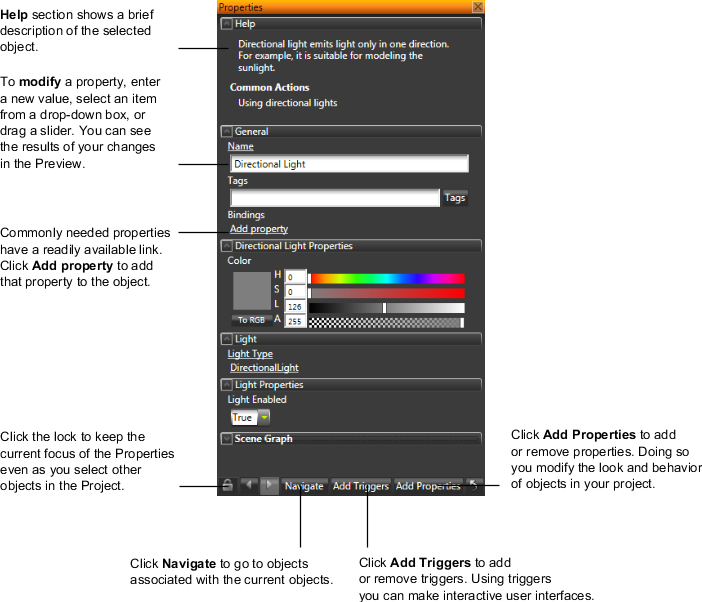
Edit properties to make your content fit your exact requirements. You edit items in your projects by adding, removing, and editing properties. You make all these changes in the Properties. You can see the result of your changes in the Preview.
Properties are specific to the selected item type, however, some properties are such that items inherit them from their parents, and some properties are inheritable by their children.
Properties are containers for different types of values with a common interface. This interface enables you to use properties in several places, such as scene graph and materials. For example, Kanzi provides all material values, including shader uniforms, as properties.
In Kanzi properties are formed using two structures: property and property type. Property type defines what the property is like, including name, data type, and default value, while property defines a value. Each property is linked to a corresponding property type. Most of the property implementations are containers for basic primitives or structures, such as Booleans, floats, colors, and vectors, but can include other information too.
See Property system.
When you create an item, Kanzi Studio adds the default properties. However, you can add or remove properties to change the way that item looks and behaves.
To add or remove properties:
To make interactive user interfaces, you can add message triggers to any object in your project. See Triggers and Using triggers.
To add or remove triggers:
The formatting conventions for the property names mark the use of properties in project profiles. Profiles allow you to create from a single Kanzi Studio project a set of kzb files and Kanzi applications that differ only in certain parts. See Profiles and Using kzb binaries.
Kanzi Studio uses the following formatting conventions for property names: